


Installing Companies House LookUp in HubSpot
6 minute read · Last updated 26 June 2026
Connect Companies House LookUp to HubSpot, finish onboarding, add the CRM card, and open company lookup from a contact or company record.
Before you start
You need permission to install apps in the HubSpot account you want to connect. The app works inside HubSpot CRM record pages for contacts and companies.
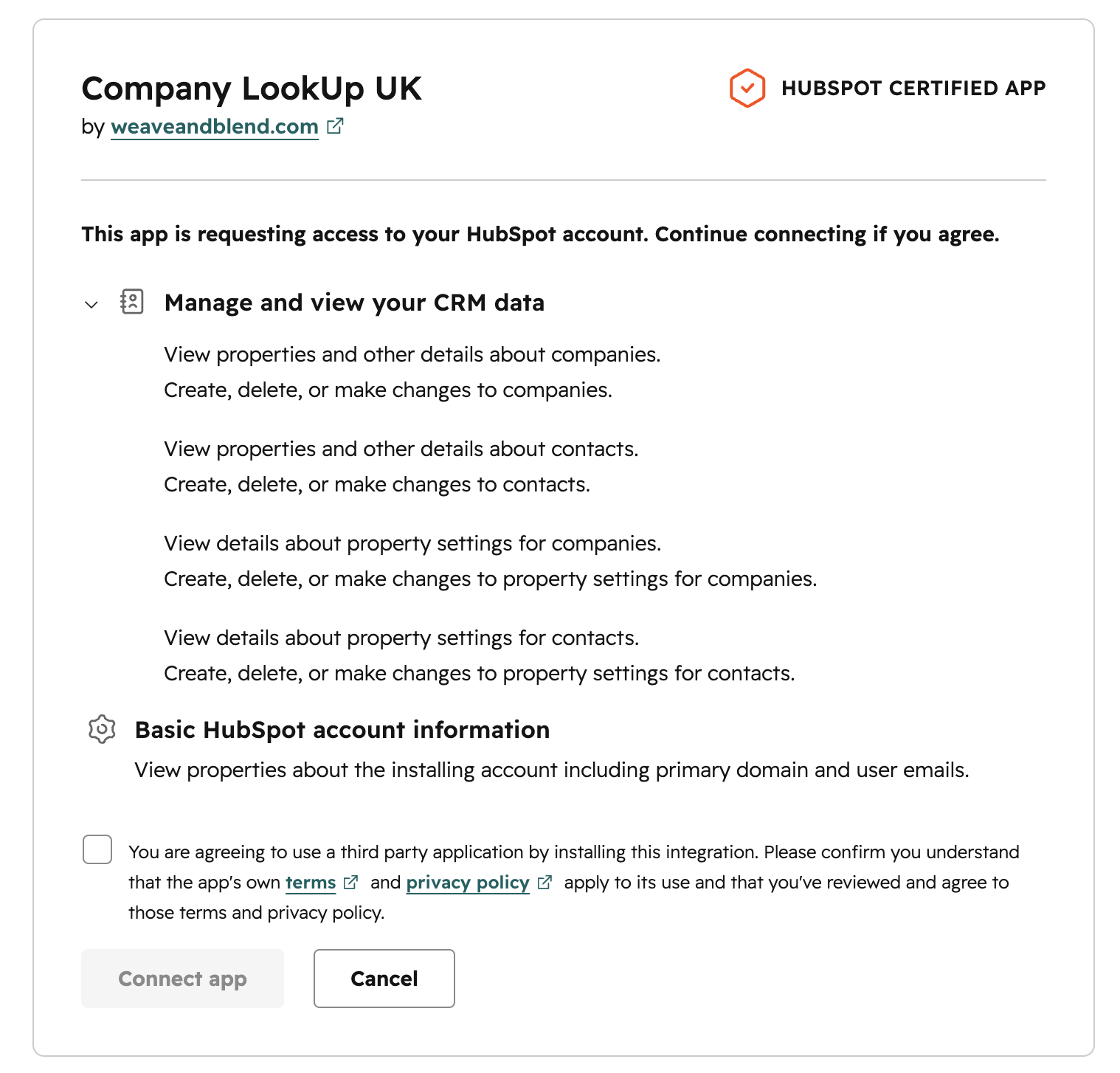
During installation HubSpot asks you to approve the scopes Companies House LookUp needs to read and update CRM data, manage contact and company properties, and read basic HubSpot account information.
Install the app
- Click Install in HubSpot from the Companies House LookUp website or click Install app from the HubSpot Marketplace listing.
- Log in to HubSpot if prompted, then choose the HubSpot account you want to connect.
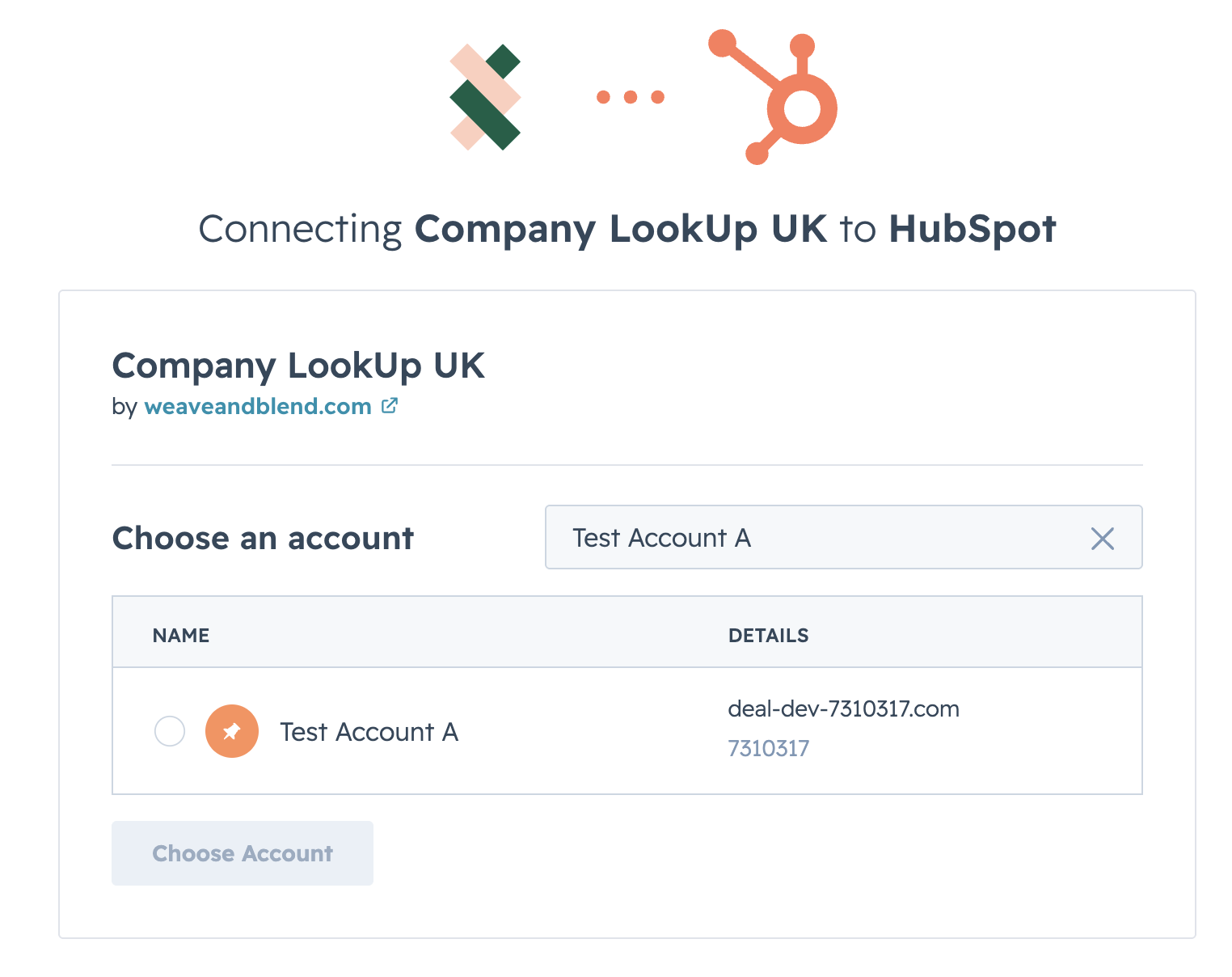
- Review the requested permissions, tick HubSpot's confirmation checkbox, and click Connect app.
When you install the HubSpot app, Companies House LookUp pre-installs the HubSpot properties needed for saving Companies House data to contact and company records. You do not need to create these properties manually.
Finish onboarding
After HubSpot connects, you should be returned to the Companies House LookUp settings screen in HubSpot. If not, you can find the settings screen by going to Settings > Integrations > Connected Apps > Companies House LookUp, and choosing the Settings tab.
Fill out your company name and primary email address, then click Save details. We'll use the primary email address to send you important updates about your subscription and the app.
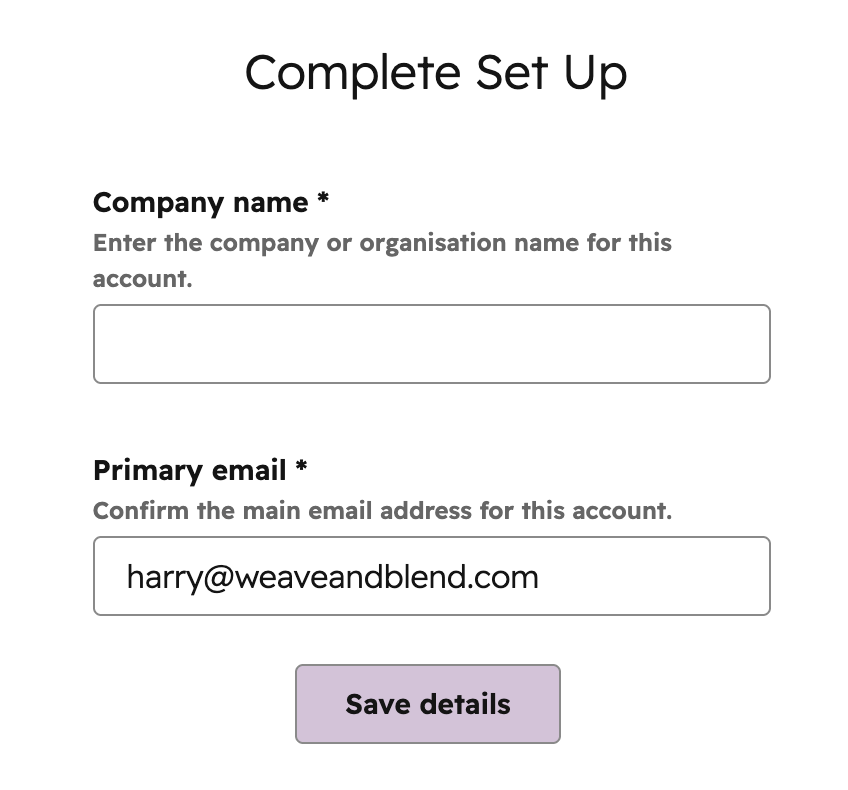
You can return to the app settings screen later to purchase a subscription, manage your subscription, or update app details.
Add the card to HubSpot records
Companies House LookUp opens from a HubSpot CRM card. Add the card to both the contact and company record pages so users can start a search from either record type.
- In HubSpot, open the app cards screen for Companies House LookUp. You can reach this from the Settings section by clicking App Cards.
- Select the Companies House Lookup card.
- Click Manage locations.
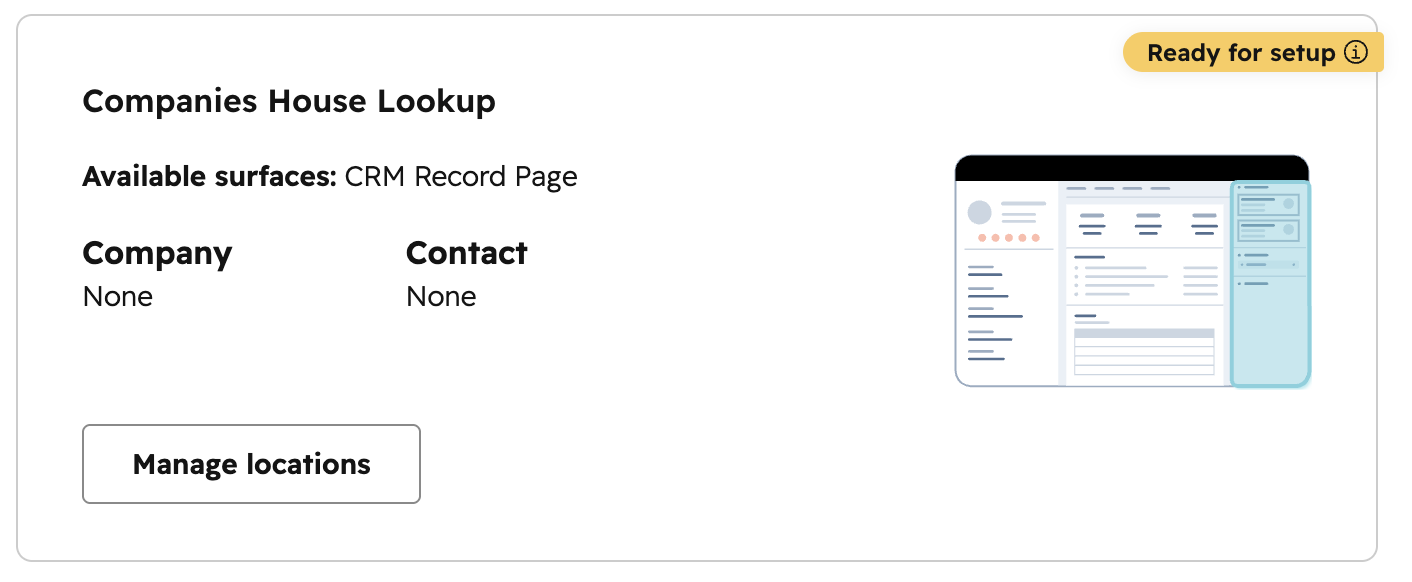
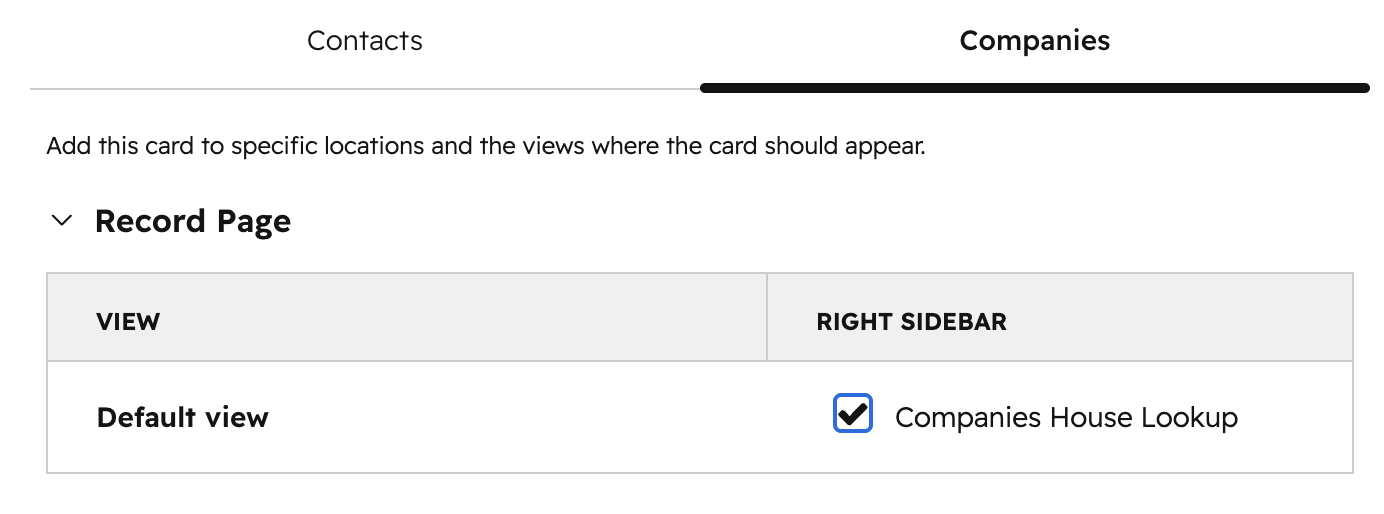
- On the Contacts tab, add the card to the right sidebar for the default record view.
- On the Companies tab, add the card to the right sidebar for the default record view.
- Save your changes.
Open Companies House LookUp in HubSpot
- Open any contact or company record in HubSpot.
- Scroll down the right hand sidebar until you find the Companies House Lookup card.
- Click Search for a Company to open Companies House LookUp.
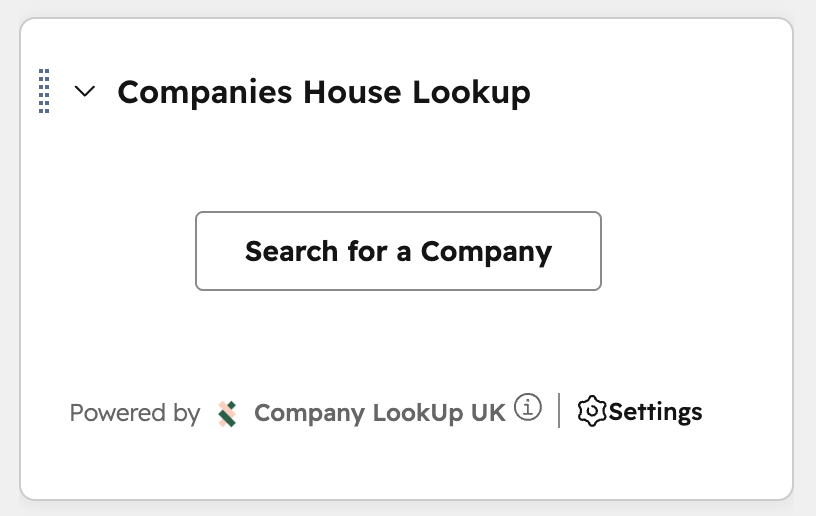
If the card is not visible, go back to the app card settings and check that it has been added to the right sidebar for the contact or company record view.
Disconnect the app
Cancel your Companies House LookUp subscription before disconnecting the HubSpot app. Disconnecting the app removes HubSpot access, but it does not cancel billing by itself.
- In HubSpot, go to Settings.
- Open Integrations, then Connected apps.
- Find Companies House LookUp.
- Click Actions, then click Uninstall.
- Confirm the uninstall in HubSpot.
What happens when you disconnect
- The HubSpot CRM card stops working for your HubSpot account.
- Companies House LookUp can no longer read or update your HubSpot CRM records.
- Previously saved HubSpot contact, company, and property data remains in HubSpot.
- You can reinstall the app later from the website or HubSpot Marketplace.